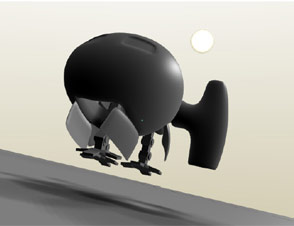
1. Lets start with some Subdivision Surface modelling. Add a cube and press the subsurf button in the mesh edit screen F9 Change subdiv to 2
2. Ok do extrudes and scales S and E key on various faces to get something similar to the ship in the Figure 1. It dosn’t have to be exactly the same, it’s a technique you are practicing. It is quite simple, select a face by selecting four vertices and extrude in a direction.You can see the subdiv Mesh being created in a faint gray.
TIPS: Hold down CTRL to extrude, grab etc by grid distance. Holding
CTRL+SHIFT to move by 1/10 of grid distance. Instead of using the mouse you can also use the arrow keyboard to move vertices and mesh objects once you are in extrude, grab, rotate or scale mode. These constraint modes and arrow keyboard are very good for making fine adjustments to your model.
Complex Rigging: Space Ship Landing Gear
By following this tutorial you will learn how to rig landing gear and create more complex animations. You will be able to animate bay doors, engine rotation and landing gear. The first part of the tutorial has some modelling information. It demonstrates a way that you can use to make doors and
hatches which fit into the mesh you want to animate.

Fig 1. The start of my mesh. I started off with a cube and just extruded and scaled various faces. You can quickly build up a complex mesh like this.
To get sharp edges do more extrudes close together.
3. Once you have a mesh you like. Increase subdiv number to three and select all vertices with A key. Hit Set Smooth button. Hit the Z key to toggle into solid view and check out your model. If everything looks good then hit Alt-C and click yes to the question. Now press M and then select the second layer. You have moved your original subsurf model to the second
layer stored as a backup. You will now be working on a mesh converted from the subsurf model. So now you are no longer working with SubDivisions. Go back to the first layer.
4. Go into edit mode TAB and select the upper half of the model with box tool B key and press H to hide it. Hiding and revealing certain parts of a mesh makes working much easier. No more selection of opposite sides of a mesh (unless that is what you want). Now it is time to add the landing gear doors and landing gear wells. Page 2
5. Select a set of vertices on the bottom where you want the landi
ng gear doors. See Figure 2. Go into side view and extrude upwards. Use the CTRL key or another constraint key because you want to be able to move it back again precisely. Ok now hit P key to seperate the vertices that you just extruded.
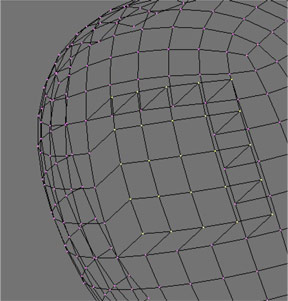
Fig 2. The vertices are extruded upwards one grid unit. Then the vertices
that are extruded upwards are seperated from the mesh. They then
become a new mesh which will fit exactly. Move this new mesh one unit
down until it fits exactly.
6. Go out of edit mode and select the new mesh and move it back to its previous position. You should now have a nice landing gear door. Extrude this up a small amount to give the door some thickness. Ok now go back into edit mode and select half the door and press P again. Now go out of edit mode. You should have two doors for the front landing gear bay. See Figure 3
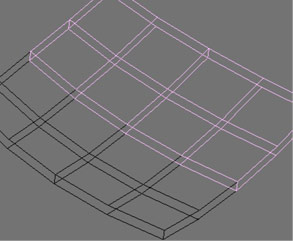
Fig 3. After making the door it is extruded back up a small amount to make it have some thickness. By then selecting half the mesh and seperating it you have two doors. Using this technique you can make all kinds of door and hatchs.
7. Name all your parts. I named mine R Front Door, L Front Door and called the main body Ship It dosn’t matter what you call everything as long as you remain consistent. If you have a very complicated mesh with lots of parts it would be a nightmare if everything is called Cube.001 etc.
8. Time to adjust your object pivot point. The object pivot point is the small pink dot that resides with every mesh. This is very important, especially when you want to do something mechanical. You want the doors to rotate open at a certain point like a door hinge. The small pink dot is that door hinge. So decide where you want the object pivot point.
9. This procedure is very important. Select the mesh you want to change.
Go into edit mesh mode and select a vertice that corresponds to the pivot
point you want. Hit Shift-S to bring up the snap menu and select Curs->Sel. Now your cursor has snapped to the vertice you want. Go out of edit mode and press Center Cursor in the edit menu. Your pivot point is now changed to where you had your cursor. You can do this freehand but this way allows very precise position of the pivot point. It will help later when you add bones. Go over this and practice until you can do it no trouble because later you will use it a lot. Now do the same procedure for the other door.
TIP: Do some practice using the various snap modes. They are invaluable when constructing complex meshs. If you select an object and then snap your cursor to it, the cursor snaps to the object pivot point (the pink dot). This is very helpful when adding bones to a mechanical object.
10. You can continue on and try other things like gear doors at the rear, hatches, loading bays etc.
11. The above steps are an intro into how to make things such as doors easily that fit. Now open up Landing Gear Begin.blend which has a finished model with engines, landing gear and doors. This has had subdiv applied to it to make it look better. The whole model is made simple so that the
concepts can be explained easily. Use this file to follow along with the tutorial.
12. We will add bones to the model and set it up for animating. After this we will add some actions so that opening and closing doors and retracting landing gear is easy. It is important in this step to maintain a clear name structure so that you will not get into trouble while animating.
13. Start at the front landing gear. Select the F Upper Leg and hit Shift-S and select Curs->Sel Your cursor should snap to the upper leg rotation point. Add an armature and draw in three bones. Name these the same as the mesh names. It makes it much easier when you are parenting everything later on. So you should have three bones called F Upper Leg, F Lower Leg and F Foot. Make sure that the bones are at the pivot points of
the landing gear objects.See Figure 4.
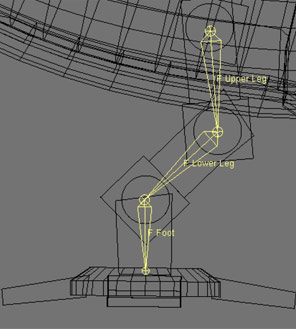
Fig 4. The bones added to the mesh. They are named the same as the
mesh objects that will be parented to them.
14. Use the same snap method with the cursor to accurately place four claw bones on the four claws. Parent all four bones to the R Foot bone. You are adding all these bones to the same armature. Make sure you add bones to the same armature. So always go into edit mode of the armature before you add more bones. See Figure 5.
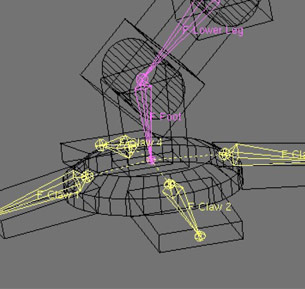
15. Now repeat the procedure for both rear landing gear and also for the doors and engine. It takes a while but there is no easy way unfortunately. You can copy and paste the rear landing gear because it has the same relationship between both sides. You want to place bones so when the bone is rotated the mesh object rotates around the pivot point of the mesh. The bone acts as a “handle” for the mesh object. It should be pretty straightforward to add the other bones. If you get into trouble open the file anding Gear Rigged.blend to see how it was done.
16. Once you have all your bones added and in a good position start parenting the corresponding meshes to the bones. For example parent R Upper Leg mesh to R Upper Leg Bone. Select R Upper Leg mesh and then select the armature. Press CTRL-P and a dialog box pops up. Choose one and then select the corresponding bone for your mesh. Now you know why aming the meshes and bones is important. You could imagine how difficult it would get with a very complex mesh and landing gear.
17. If all your bones have been parented to your different meshes then you can go into pose mode and test the bones. If everything is alright and your mesh objects are all parented to the right bones then you can go onto the next step
TIP: Remember if you are in pose mode and don’t like the things you have done with your bone. Press Alt-R, Alt-G, Alt-S to clear Rotation, Location and Scale back to their original positions. If you select all the bones you can return them all to their original positions.
18. By adding some constraints to some of the bones animation can be made easier. These type of constraints will only work if both sets of landing gear operate parallel to each other. So rotation in only one plane is happening. Go to the constraints buttons whilst in pose mode CTRL-TAB. Select the R Claw 1 and add a rotation constraint. Choose Armature
for the Object and L Claw 1 for the bone. Now when you rotate the L Claw 1 Bone the R Claw 1 bone will follow. You can keep adding constraints now so by moving any of the left side bones the right side bones will follow. This means you only have to animate one side of the landing gear for the other
to follow. The same thing can also be done for the engine.
19. Add a null and Rename it Master Ship. This is your master control null. Any animation of the ship is done using this null. Parent the ship mesh and armature to this null. Now by selecting this null and moving it around everything else should move. This makes animating much easier and you can always remove keys easily using this method.
20. Now you can start animating. Add an action window on one side. Go into pose mode and start posing the bones for different actions. To insert an action you pose your bones and then select the bones your want in that action. Then press insert and choose the type of key you want.
Example Actions:
Engine takeoff: Engines pointing down
Engine Cruise: Engines Pointing to the rear
Gear Down: All gear down
Gear Up: All gear up
Doors Open: All landing bay doors open
Doors Closed: All landing bay doors closed
Claws Out: Claws folded in
Claws Retracted: Claws folded out
By adding actions it is very easy to animate by copying and pasting actions at times you want different things to occur. This is a much easier method of animating. You could imagine keyframing all the different parts of the landing gear individually.
Open Landing Gear Anim.blend for an example of animation using the rigged space ship. I added a few intermediate actions so that the landing gear would fold up into the ship instead of going through it. The animation is just an example of what you can do. If you took more time you could create something pretty good. You can also see how easy it is to animate. If you wanted you could make the ship land again with all animation quite easily.
Going further: You could make much more complex gear with hydraulics, hoses etc. More hatchs, weapons bays, folding arms, retractable weapons, folding wings….just about anything mechanical. Use your imagination!

© blender-models.com 2016 | a blender 3D community resource
Privacy Policy
Es muy copado
is pretty cool, entertaining and useful
I need tutorial